









How to disable safe mode on your phone: instructions for Android and iPhone
Kyiv • UNN
Safe mode helps identify smartphone malfunctions by disabling third-party applications. To return to normal, a restart or clearing the cache is sufficient.

Safe mode on a smartphone is a special diagnostic system state that helps quickly identify the causes of device malfunctions by disabling all third-party applications. UNN explains what Safe Mode is, what it's for, and how to disable it.
What is safe mode and why is it needed?
Safe Mode on a phone is a diagnostic operating system boot mode (primarily Android) in which only system programs and standard applications installed by the manufacturer are launched. Third-party applications (downloaded by the user) are disabled, which allows you to find and remove the cause of malfunctions, "freezes," or viruses.

This option is not needed for everyday use, but if the phone suddenly starts to heat up, slow down, or refuses to work properly, safe mode will help you find out what's wrong. With its help, you can:
- identify which application is causing the system to crash;
- find malicious files and delete them;
- perform a planned OS check-up and ensure its proper functioning.
If you activate Safe Mode according to the instructions, it will not harm the device.
Safe Mode can be activated accidentally:
- accidental button presses – happens if the phone was in a pocket or bag. Stuck volume or power buttons – due to physical damage or dirt, keys can be pressed on their own. Application malfunction – if an application conflicts with the system, the smartphone may restart in Safe Mode to resolve the issue;
- safe mode is just a diagnostic tool that does not harm the smartphone. It does not delete data or change system settings. If the mode activates on its own, you should check the buttons and installed applications.
- if Safe Mode turns on constantly, even after a restart, this may indicate a system failure or faulty keys, and in such a case, you should contact specialists.
How to disable safe mode on Android
Restart your phone
An option for all occasions, like restarting a PC. To perform the action:
- press the power key for a few seconds;
- in the selection window, specify the restart option;
- wait a minute for the device to turn on in normal mode.
If there is no restart option, turn off the phone and turn it on yourself.
The history of the first mobile phone call and the evolution of gadgets03.04.26, 16:02 • 94630 views
Disable the mode via the notification panel
On most devices, information about Safe Mode operation is displayed in the notification shade. Just click on the notification and follow the on-screen instructions. When you see the disable button, click on it and the operating system will return to its normal state.
Delete applications that are crashing
If you quickly notice improper phone operation, it may be due to one of the recently downloaded applications. There are several options:
- delete the application yourself - if you remember which application you installed last, delete it from the application menu;
- delete via the application list in settings - go to settings and select sorting by update time in the list of all applications. Delete the first downloaded software in the list (not factory).
For greater reliability, clear the cache in recent applications, it won't hurt.
Reset your smartphone to factory settings
This is a last resort when other options don't work. To avoid losing important files, back up before deleting or move photos, videos, and music to a memory card via a laptop.
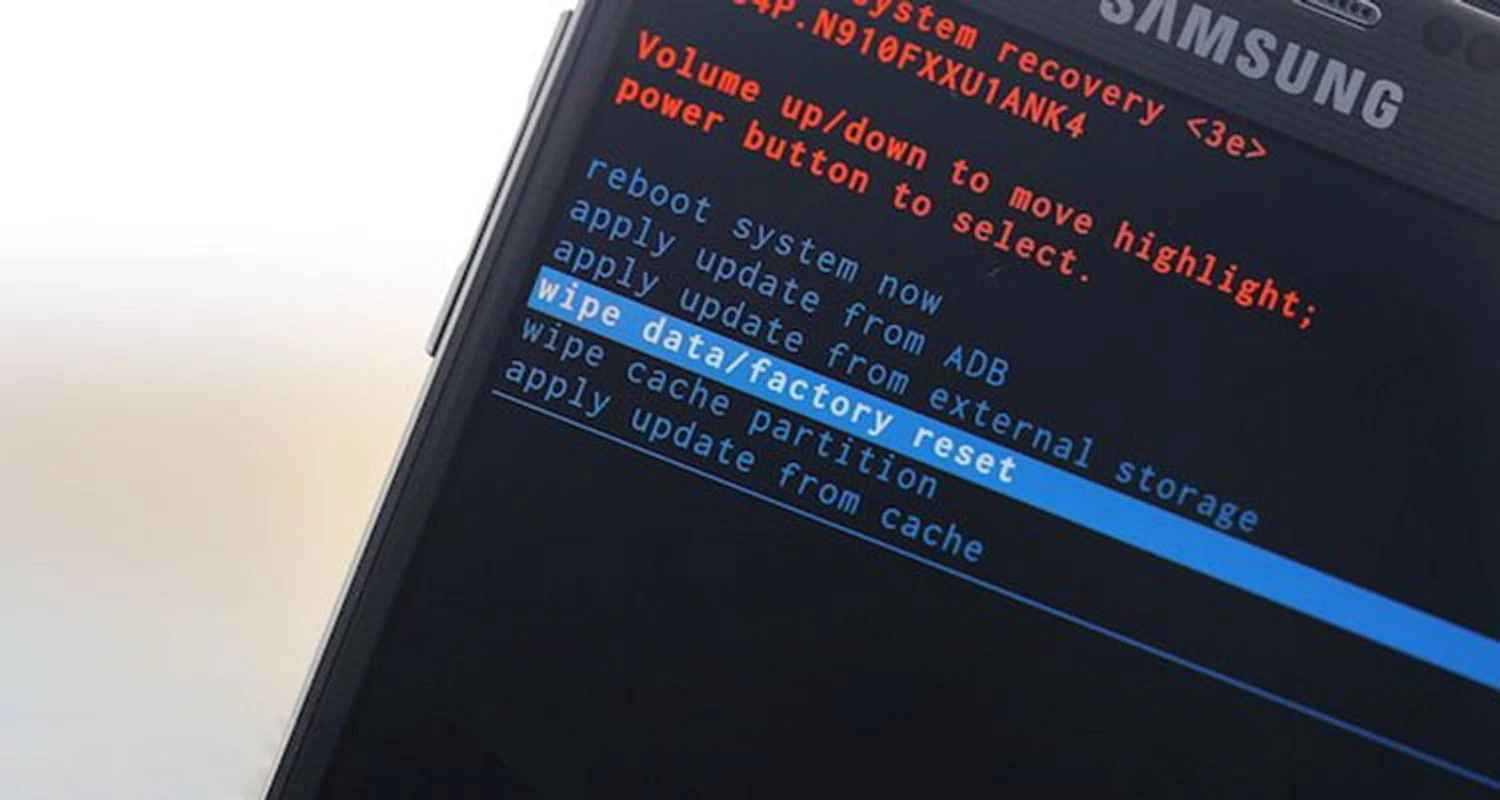
What to do next:
- click on the settings icon;
- in the list, find general settings;
- scroll down to "Data reset";
- read all warnings;
- confirm your desire to erase all files.
All that remains is to wait for the data to be deleted. After launching, you need to set up the smartphone as new.